Navigate faster, smoother with QuickNav | Zoho Directory

Meet QuickNav: The shortcut to faster navigation
You're the IT admin.
It’s a busy Monday morning, and an employee needs an MFA reset before they can sign in and get to an important meeting. They’re waiting for you to get them back into their account.
You open Zoho Directory, go to the Users module, and search for the employee. You open their profile, find the MFA option, and reset it. Then you enter your password to confirm the reset.
The task itself is simple. But getting there takes several steps.
And this is just one of the many requests you handle during the day—assigning applications, adding groups, finding reports, managing policies, and more. Getting to the right page for each task can take multiple steps, adding time to your workflow.
What if you could start with what you need and get straight to it?
Introducing QuickNav, a faster way to navigate Zoho Directory.
What is QuickNav? How does it simplify the way you work in Zoho Directory?
QuickNav is a unified search capability built for easy navigation in Zoho Directory, helping admins quickly find and access resources from one place.
It helps admins get to the right page or action in fewer steps—whether it’s adding an application or policy, accessing reports, including successful and failed sign-ins; or resetting the MFA or password of a searched user.
You can launch QuickNav in two simple ways:
Press Z + Space
Click the lightning-bolt icon in the top navigation bar
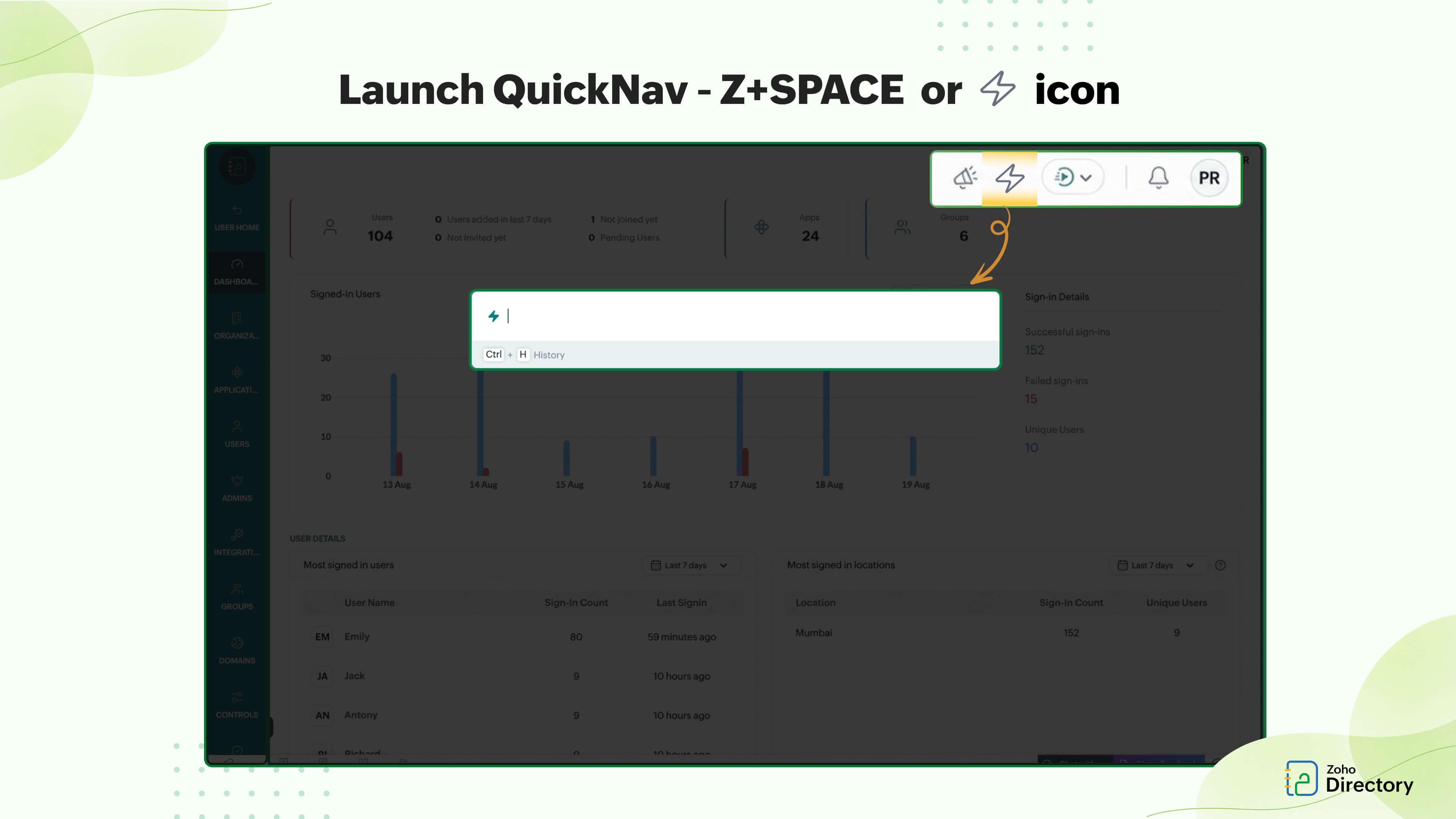
Once launched, the workflow is simple: Search → Find → Act.
But the real value becomes clear when you use QuickNav for the tasks you already handle every day.
Here’s how QuickNav makes everyday navigation across Zoho Directory simpler and faster:
Get to the right user and take action faster
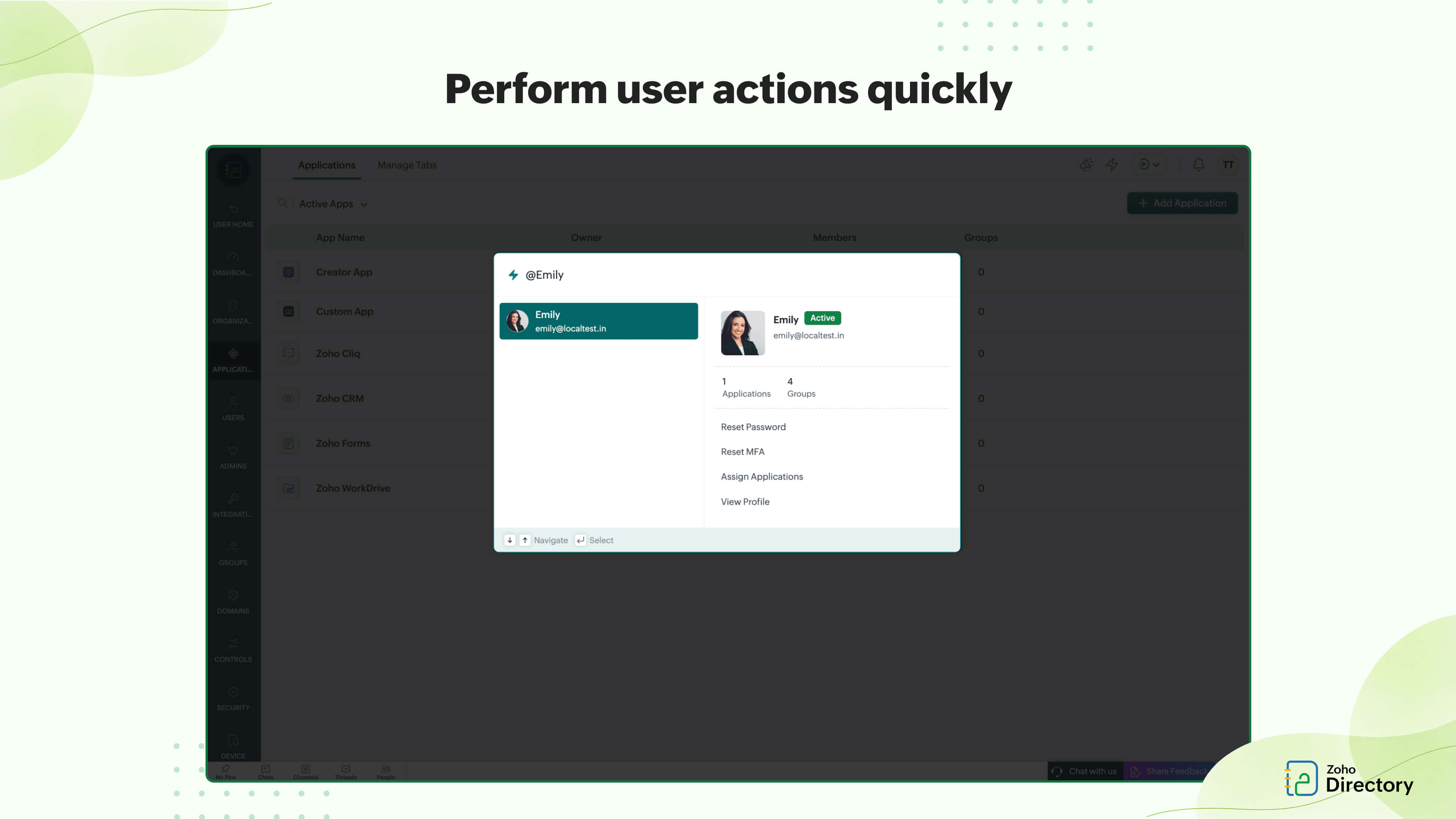
Let’s go back to that MFA request. Instead of opening the Users section, searching for the user, opening their profile, and then looking for the right action, you can open QuickNav and type @ followed by the user’s name. From the same panel, you can reset their MFA, reset their password, assign applications, or view their profile.
Among the many requests you handle as an IT admin, if you frequently receive tickets to reset a user’s MFA or password so they can get back to work, open QuickNav and follow the steps above to get it done faster.
Find the user. Take action. Move on.
But resetting MFA is just one example. What else can QuickNav help you do?
Find what you need without remembering where it is
As an IT admin, you may know exactly what you need to find or what action you need to perform, without remembering where to go to do it in Zoho Directory.
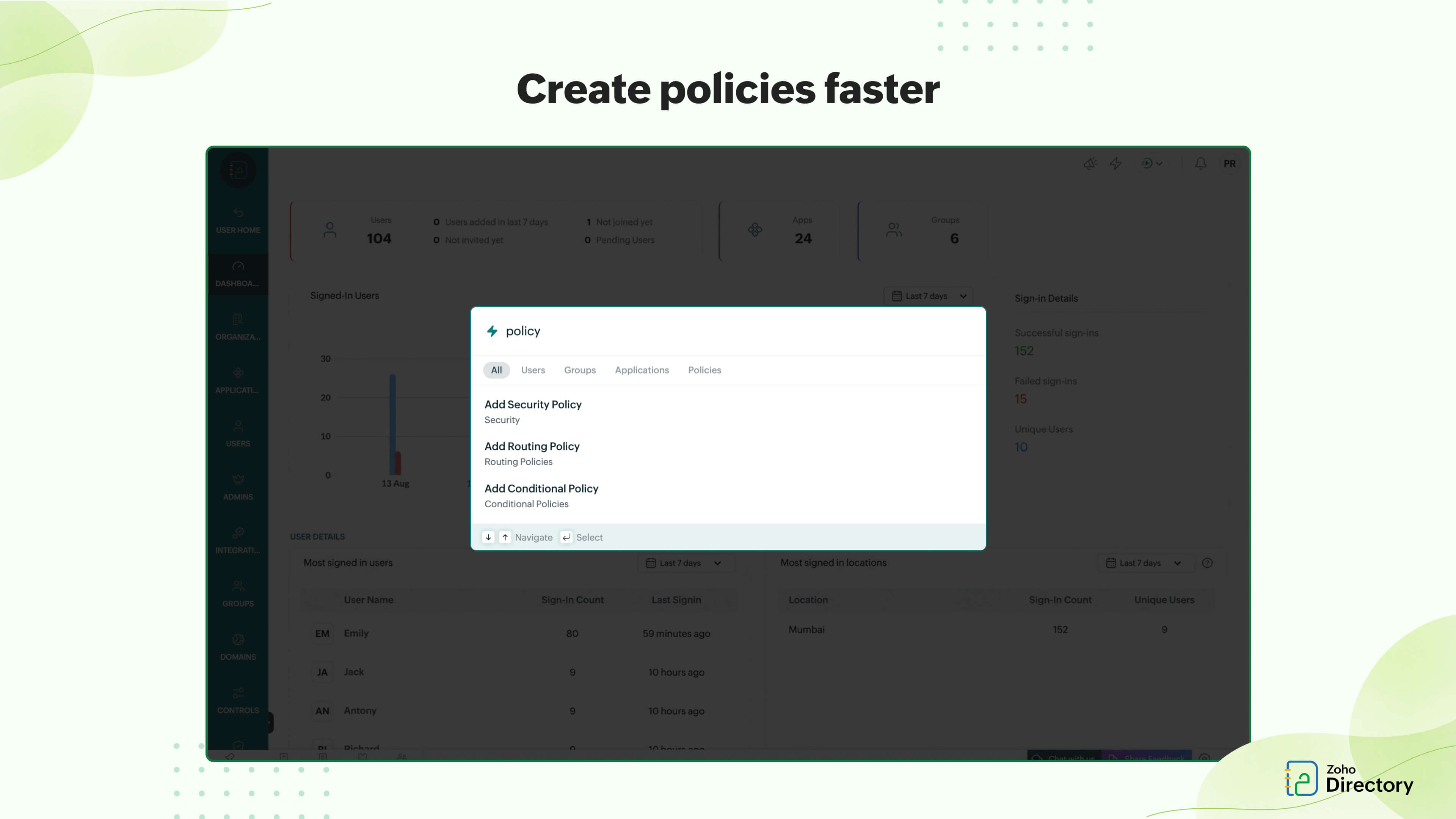
Say you need to add a policy. Just search for “policy” in QuickNav, and you can choose the type of policy you want to add, whether it’s Conditional Access, Routing, or Security Policy. Select the policy you need, and QuickNav takes you straight to the relevant page or flow.
The same approach works across other everyday admin tasks:
Find reports like successful sign-ins, most signed-in users, or most signed-in locations.
Find groups or applications without navigating through their respective sections.
Assign admins by searching for the action directly.
Add and access policies by searching for the policy you need.
Instead of remembering the navigation path, start with what you know. Search for the resource or action and go straight to it.
This can be especially useful when you're new to Zoho Directory. You may know what needs to be done without knowing exactly where to find it.
Keep your workflow on the keyboard
QuickNav is a win for admins who prefer to keep their hands on the keyboard and get things done without reaching for the mouse.
Instead of using the mouse to move through menus, you can open QuickNav with Z + Space, type what you’re looking for, use the Up and Down arrow keys to move through the results, and press Enter to select the one you need.
You can also use Ctrl + H to access your QuickNav history and repeat previously performed tasks.
With these keyboard shortcuts, you can open QuickNav, search, move through results, select an option, and revisit previous searches without switching between the keyboard and mouse for every step.
You can get a lot of work done just from the keyboard, without having to move the mouse.
Get more done with fewer steps
Whether you're handling a user request, looking for a policy, checking a report, or managing a group or application, QuickNav gives you one place to start. You don't need to change the tasks you already know how to perform—you simply change how you get to them.
So the next time a user needs their MFA reset, you know where to start. And when you need to find a policy, check a report, assign an admin, or manage an application, you can use the same approach to get there faster.
Accomplish more at work with fewer steps and a smoother navigation experience.
Curious to see how QuickNav can simplify your everyday admin tasks? Give it a try and see how quickly you can get where you need to go.



Comments