Identify and merge all duplicate tickets from same customer using the Ticket Timeline
Scenario
A Cloud Solutions is a mid-sized BPO firm specializing in outsourced technical support for SaaS companies. Their support desk operates across multiple channels — email, chat, web forms, and a customer portal — and handles a high daily volume of incoming tickets across several client accounts.
A recurring pattern is that customers, anxious for a quick resolution, often send multiple emails about the same issue within a short window. Sometimes a customer will send a follow-up email with additional details, rephrase their original request, or escalate the same concern to a different support email address. Each incoming email generates a separate ticket in Zoho Desk, regardless of whether the customer already has an open ticket for the same issue.
Sarah Whitfield, a senior support agent, is reviewing a ticket from a customer reporting a login failure. While drafting her response, she wonders whether this same customer has already submitted another ticket for the same issue — perhaps through a different channel or with a slightly different subject line. Without a way to check this from within the ticket she is currently viewing, Sarah risks duplicating effort, sending inconsistent responses, or missing critical context from a related ticket that another agent may already be working on.
Problem
When customers send multiple emails or reach out through multiple channels for the same issue, several tickets are created independently in the system. Handling these in isolation leads to a cascade of operational problems:
- Duplicate agent effort: Multiple agents may unknowingly work on the same customer's issue across separate tickets, spending time researching and drafting responses for problems that are already being addressed elsewhere.
- Inconsistent communication: Customers may receive conflicting or repetitive responses from different agents handling different tickets for the same underlying issue, damaging the credibility of the support team.
- Lack of historical context: Agents working on a ticket have no immediate visibility into the customer's prior interactions, previously offered solutions, or related open tickets — leading to repetitive questioning and delayed resolution.
- Skewed SLA metrics: Duplicate tickets inflate the ticket queue, making it difficult for managers to accurately track workload, response times, and resolution rates.
- Risk of agent collision: Without visibility into other tickets from the same contact, multiple agents may simultaneously respond to different tickets from the same customer, resulting in redundant communication and confusion.
- Queue clutter: Duplicate and related tickets clutter the support queue, making it harder for agents to prioritize genuinely new and distinct issues that require attention.
Solution
The Timeline feature in Ticket Detail View directly addresses this problem by providing agents with an instant, contextual view of all tickets received from the same contact without requiring them to navigate away from the ticket they are currently working on.
When an agent opens a ticket and accesses the Timeline, the system automatically fetches all tickets associated with the same contact and presents them in chronological order.
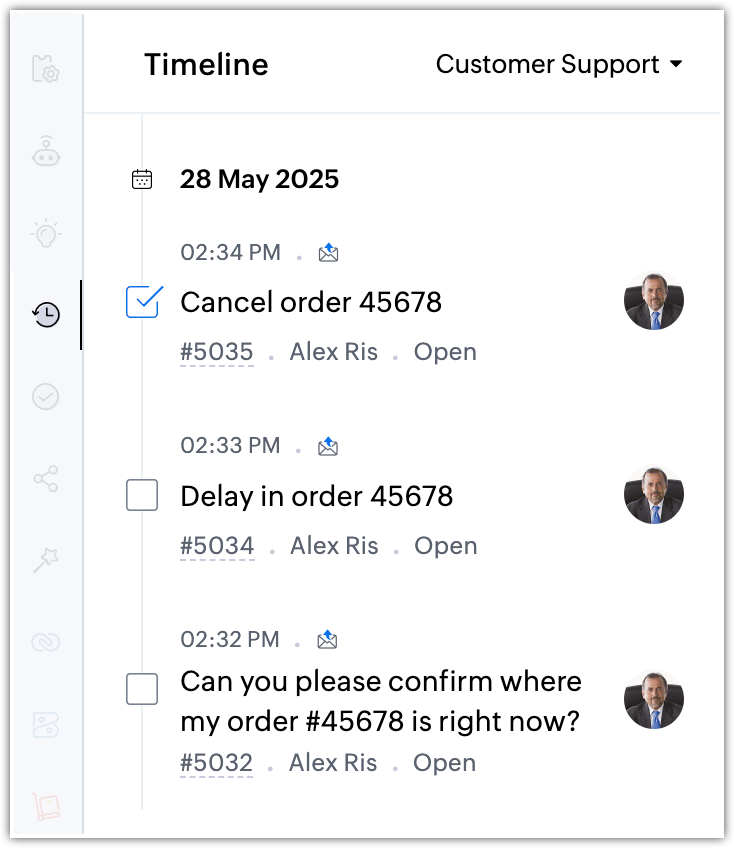
Each entry in the Timeline displays the Subject, Ticket Owner, and Status of the ticket, giving the agent a comprehensive snapshot of the customer's support history at a glance.
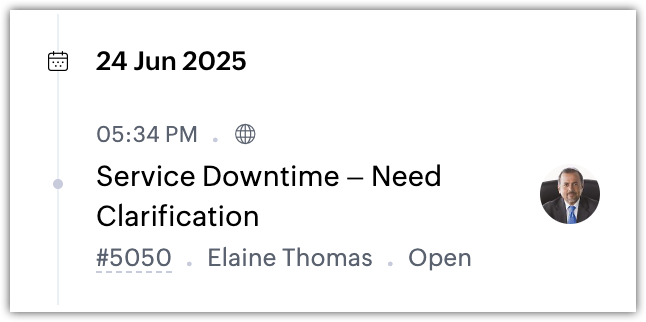
This capability allows agents to:
- Determine whether the contact have raised only one ticket or multiple tickets from different support channels for the same query, which helps tailor the accurate response.
- Review the solutions offered on previous tickets that had similar problem. They can avoid repeating troubleshooting steps which are already attempted and failed.
- Identify duplicate or related tickets that can be consolidated using Merge Tickets from the Timeline view.
- Assign the ticket to an agent who has previously handled the same customer, in case its complex.
- Gauge the customer's frame of mind by reviewing their happiness ratings on prior tickets, enabling a more empathetic and informed approach.
Configuration
To access the Timeline View from a ticket
- Navigate to the Tickets module.
- Open the desired ticket from the list view.
- In the Ticket Detail View, locate the left sidebar.
- Click the Timeline icon in the left sidebar. The Timeline panel will open, displaying all tickets received from the same contact in chronological order.
- Each ticket entry in the Timeline will show:
- • Ticket created time
- • Ticket created support channel
- • Subject of the ticket
- • Ticket ID
- • Ticket Owner (assigned agent)
- • Status of the ticket (e.g., Open, On Hold, Closed, Escalated)
- • If there are no prior tickets from this contact, the Timeline will display only the current ticket
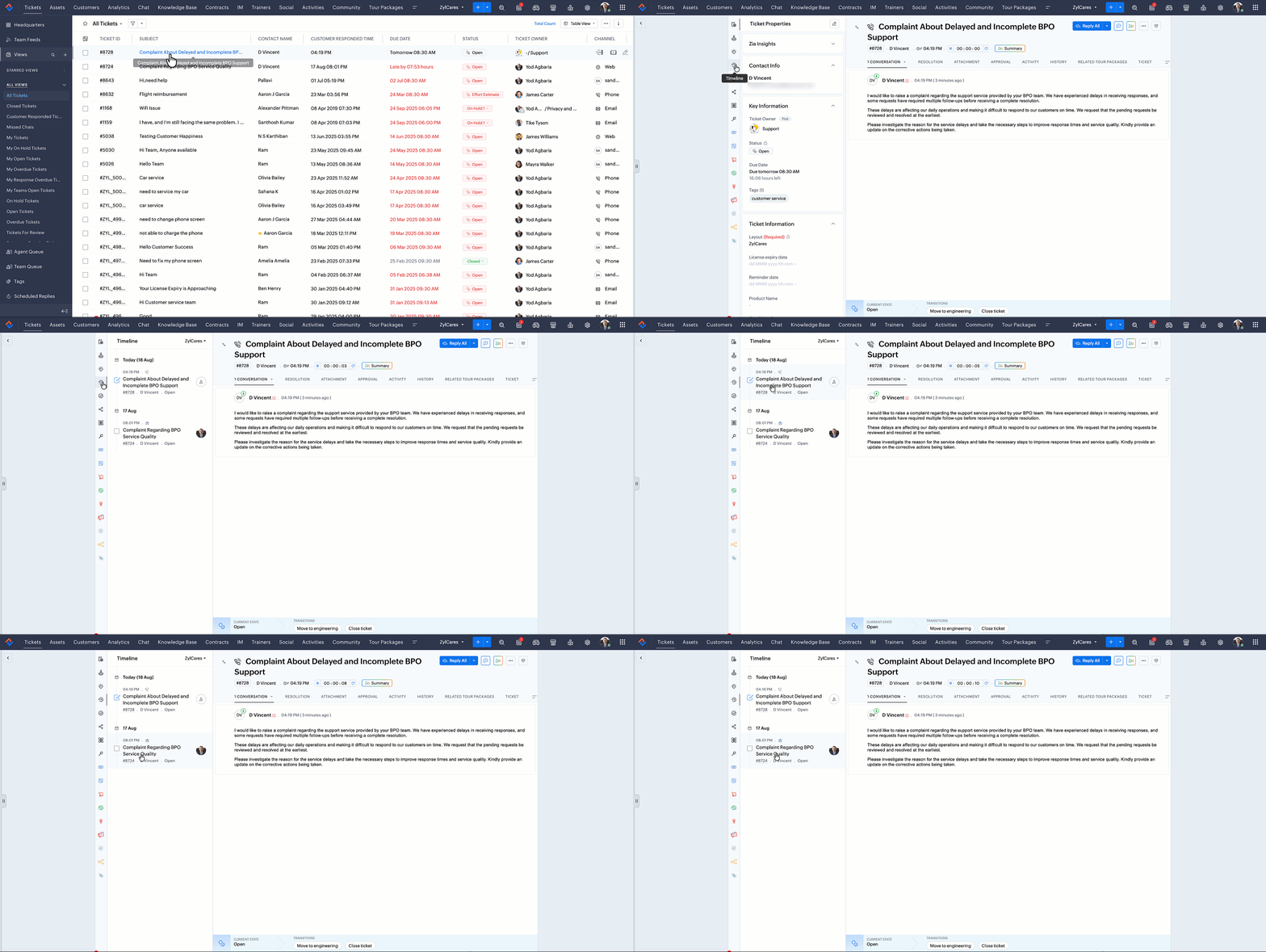
To merge duplicate tickets directly from the timeline
- In the Timeline panel, identify the duplicate tickets that need to be consolidated.
- Select the checkboxes next to the tickets that needed to be merged (up to five tickets can be merged at a time).
- Click Merge.
- On the MergeTicket page, review the fields from each ticket and select which values should be retained in the master ticket.
- • By default, the first ticket created will be designated as the master ticket.
- • A different ticket can also be manually selected as the master ticket, if needed.
- • For fields such as Contact Name, Account Name, Subject, Product Name, Status, Due Date, and others, choose whether the value from the master ticket or from another ticket should be retained.
- • Ticket Created Time, Time to Respond, and Ticket On Hold Time values will always be taken from the master ticket and cannot be overridden.
- • Click Merge.
- Click Yes, Merge to confirm. All threads, comments, replies, and attachments from the merged tickets will be consolidated into the master ticket and organized chronologically based on their time of creation.
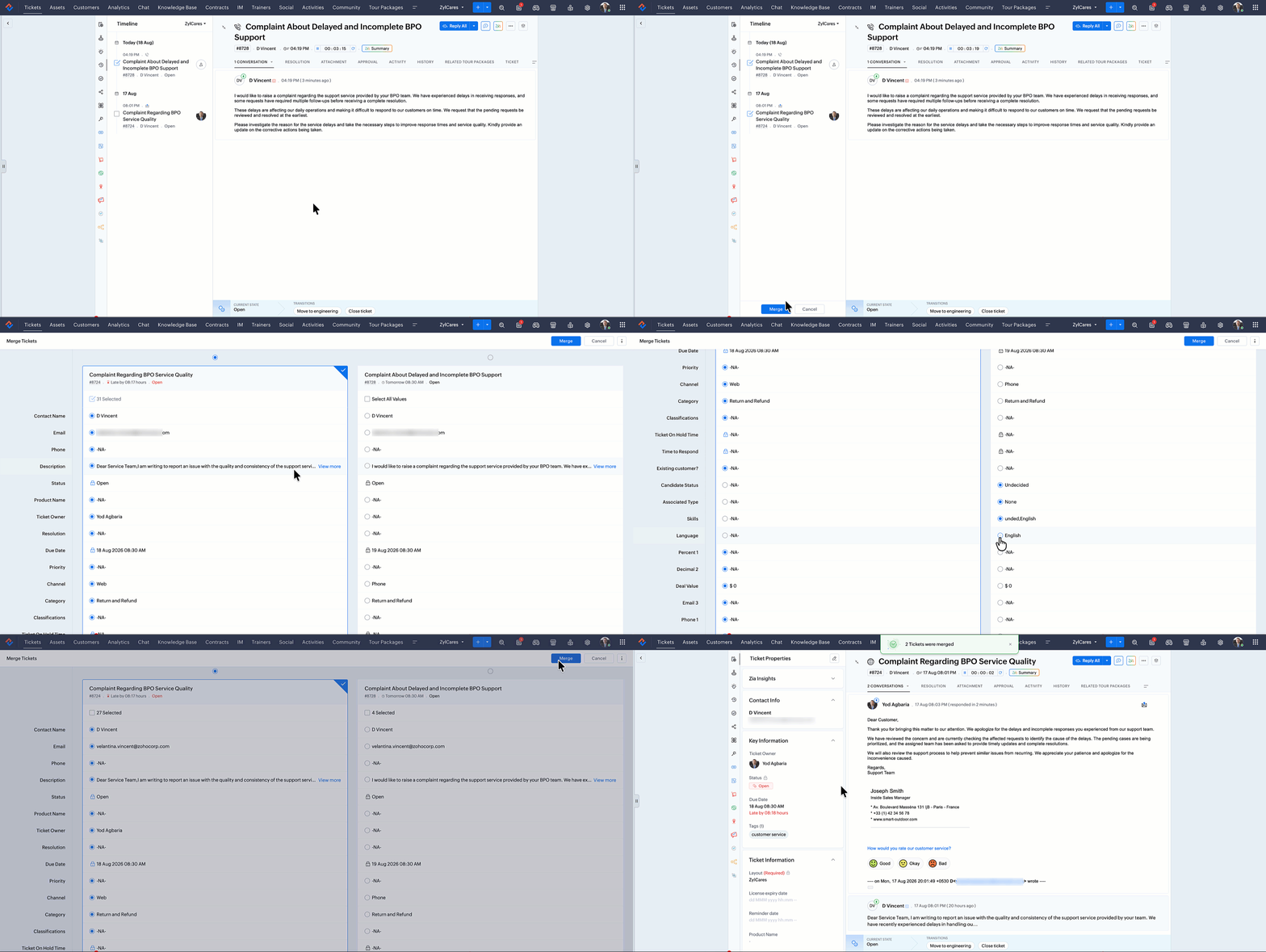
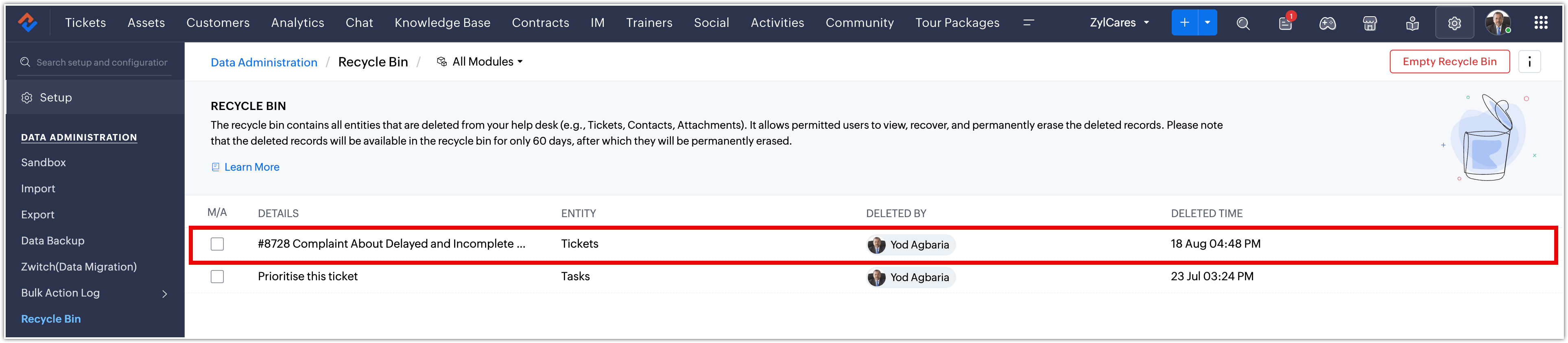
Note: The merged (non-master) tickets will be moved to the Recycle Bin and can be restored within 60 days if needed (Setup > Data Administration > Recycle Bin).
Output
After successful implementation:
Agents can view all tickets from the same contact directly within the Ticket Detail View by clicking the Timeline icon in the left sidebar — no navigation to a separate module or manual search is required.
The Timeline panel displays the Subject, Ticket Owner, and Status of each ticket in chronological order.
Agents can identify duplicate or related tickets at a glance and initiate a merge directly from the Timeline. Up to five tickets can be merged with a single master ticket along with all conversations, comments, and attachments .
Merged tickets are moved to the Recycle Bin and can be restored within 60 days.
Managers benefit from a cleaner ticket queue with reduced duplicates, leading to more accurate SLA tracking, balanced workload distribution, and improved reporting metrics.
Customers receive unified, consistent responses from a single ticket thread, eliminating the confusion of receiving multiple replies from different agents for the same issue.
Collision detection ensures that even when multiple agents are viewing tickets from the same customer, they are alerted to each other's presence and activities, preventing duplicate responses in real time.
Read more: Ticket Timeline view
- EditionExpress and above
- Key FeaturesTimeline View in Tickets
- Profile PermissionFind and Merge